




Create multi-splitter
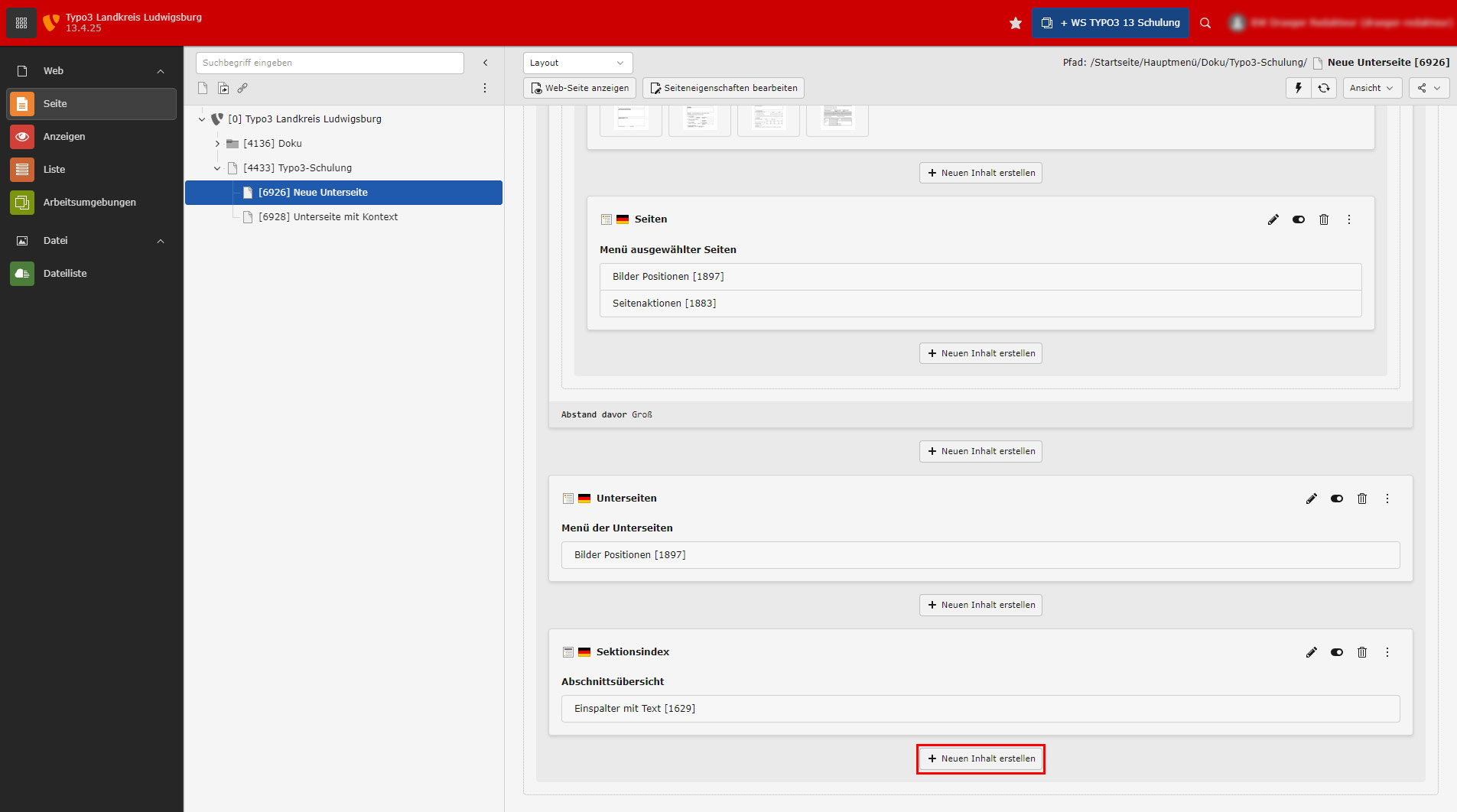
The procedure for creating a multi-splitter is always the same, regardless of whether you want a 2-splitter, 3-splitter, 4-splitter or 2-splitter with a different layout. First select "Create new content" at the desired position.
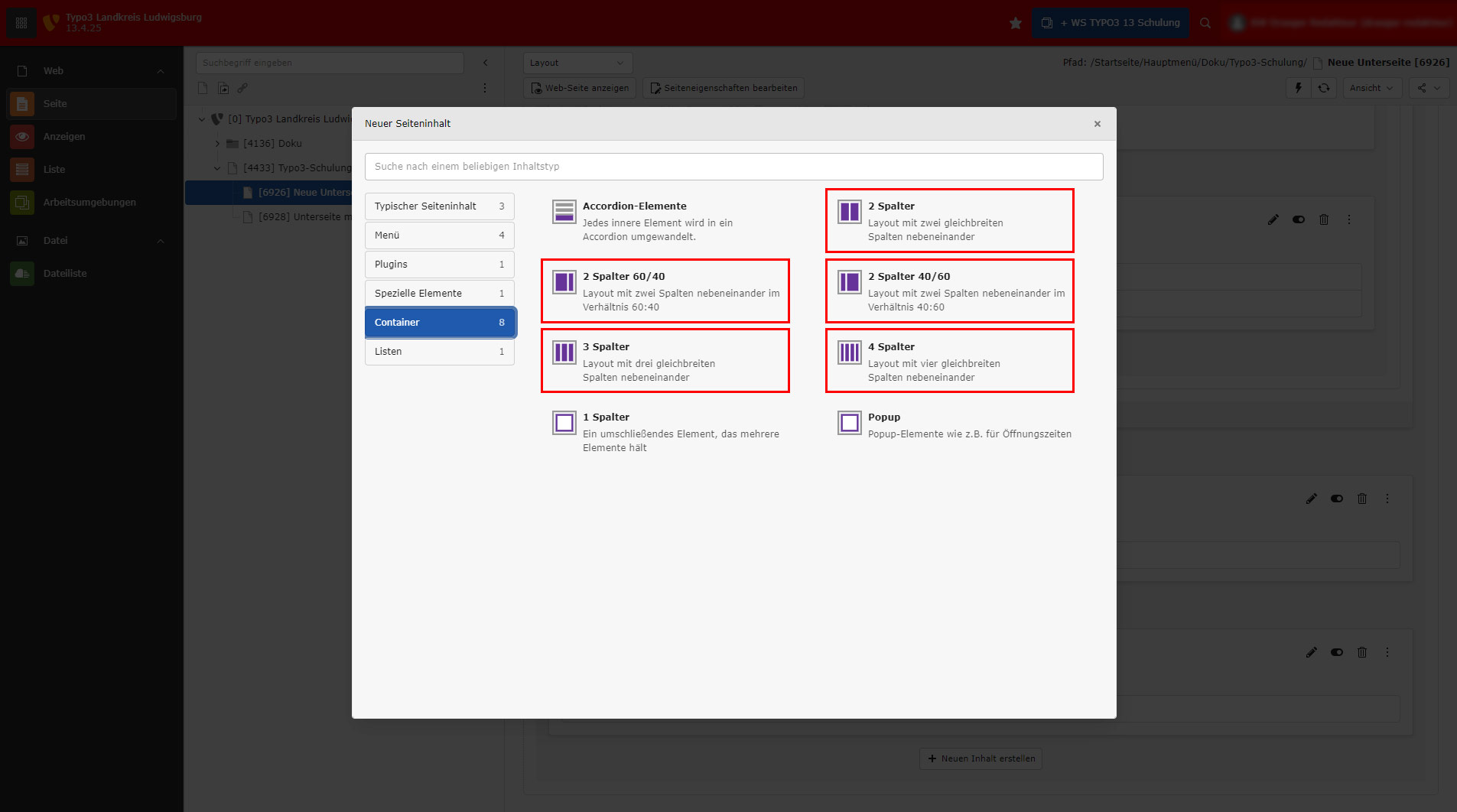
Select the desired element in the following pop-up.
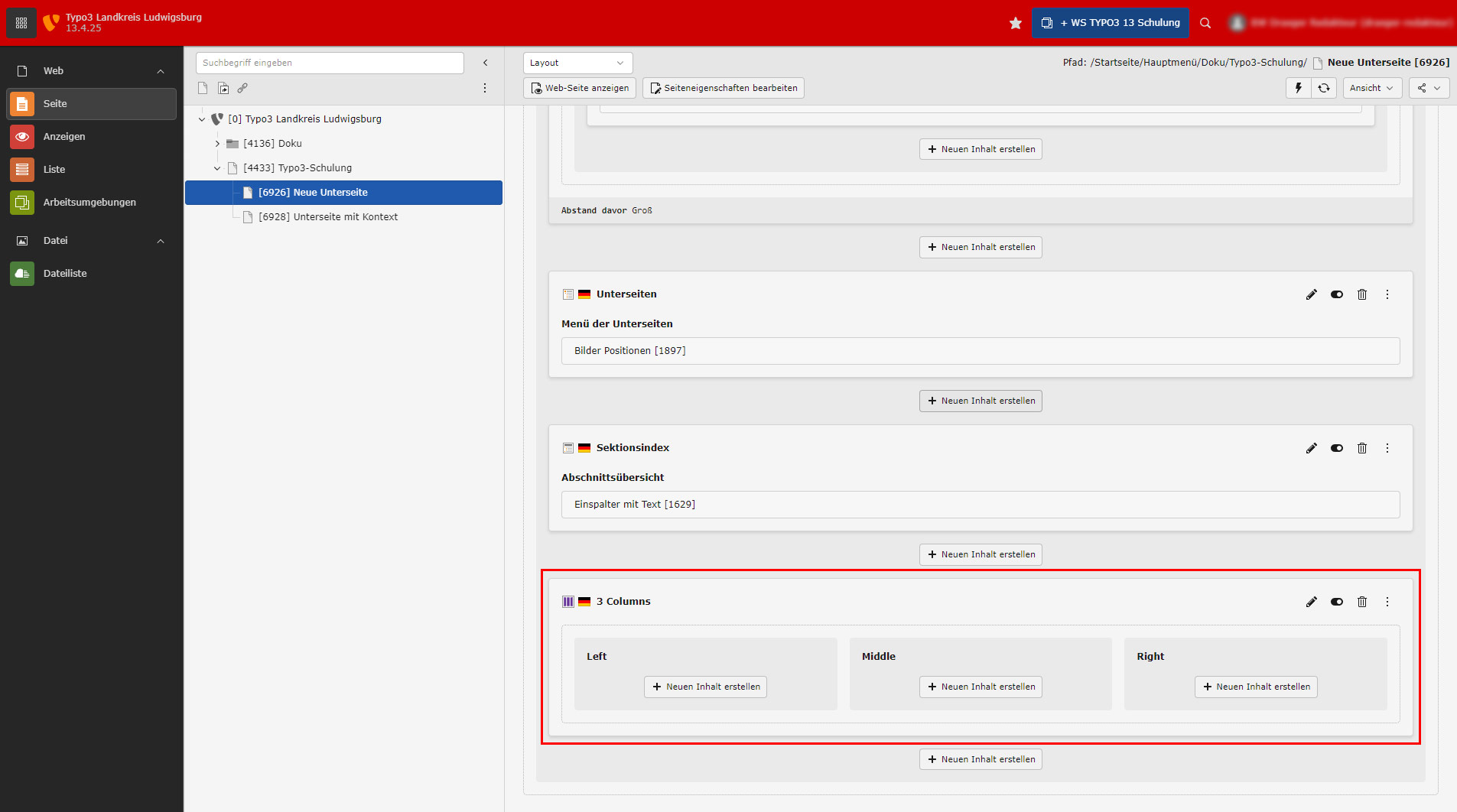
After selecting the element, it is created in the backend and is visible here. Here in the example it is a 3-column.
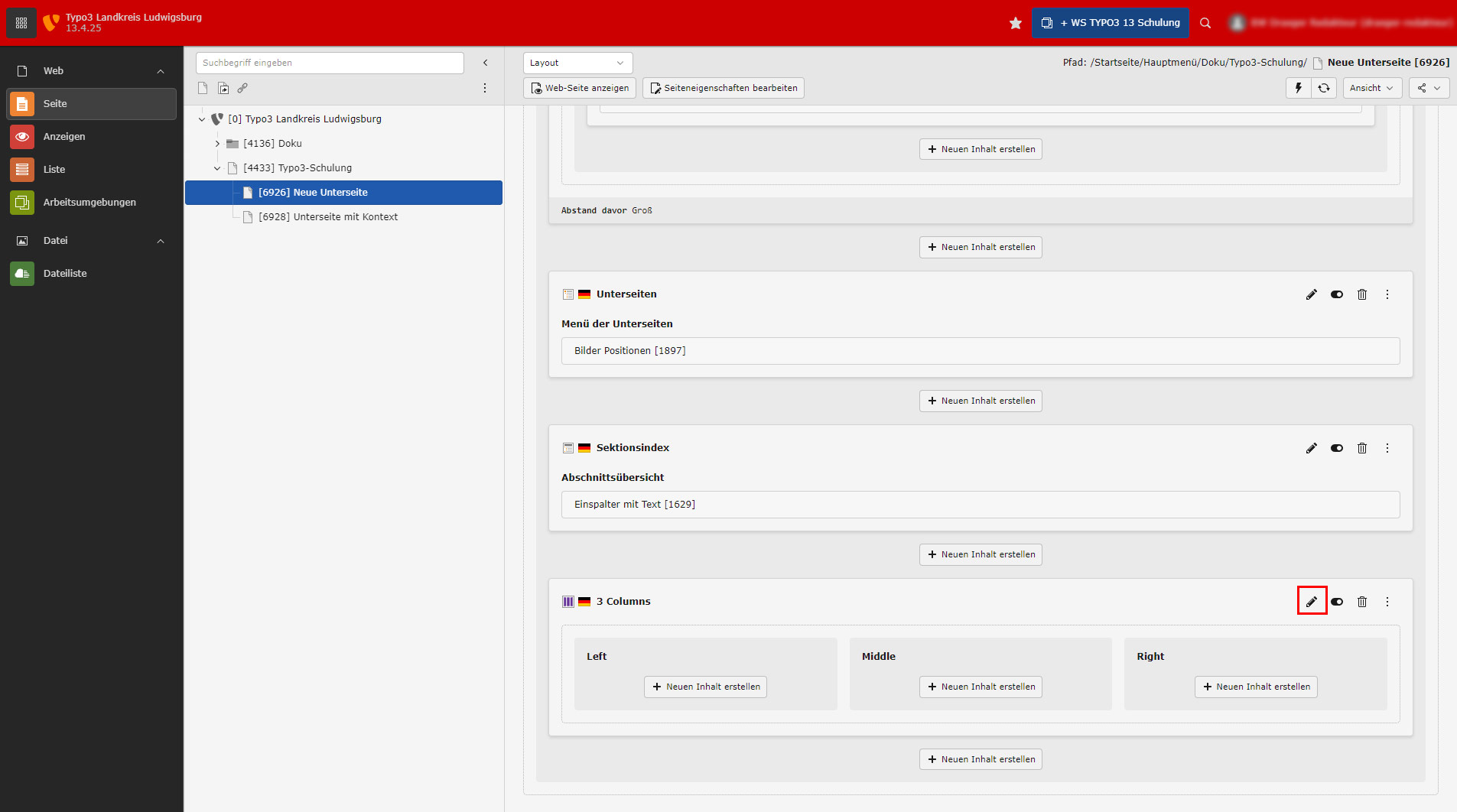
Immediately afterwards, select "Edit" using the button with the pencil.
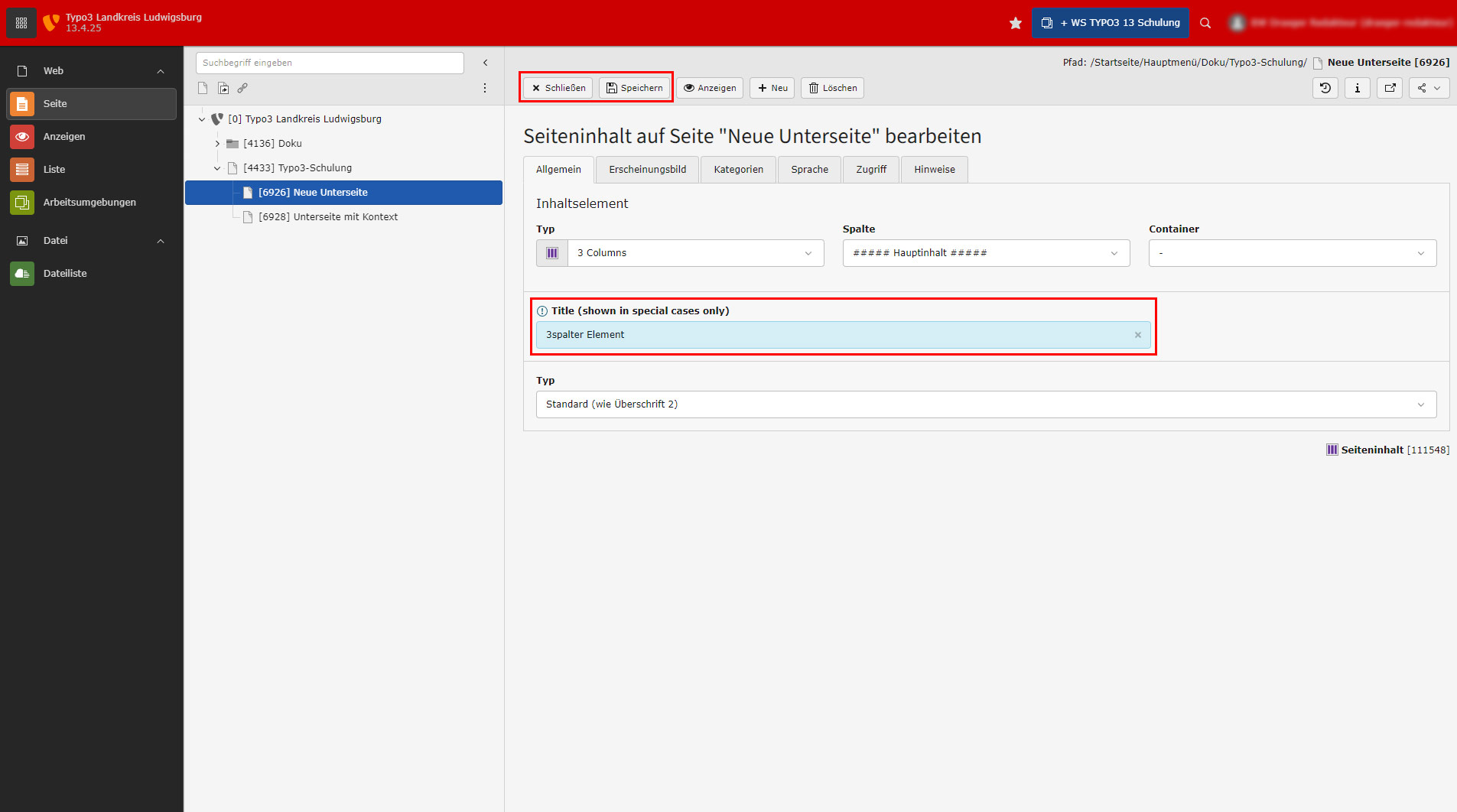
Assign a meaningful heading. This is only used in the backend to identify the element, it is not displayed in the frontend! Then press "Save" and "Close".
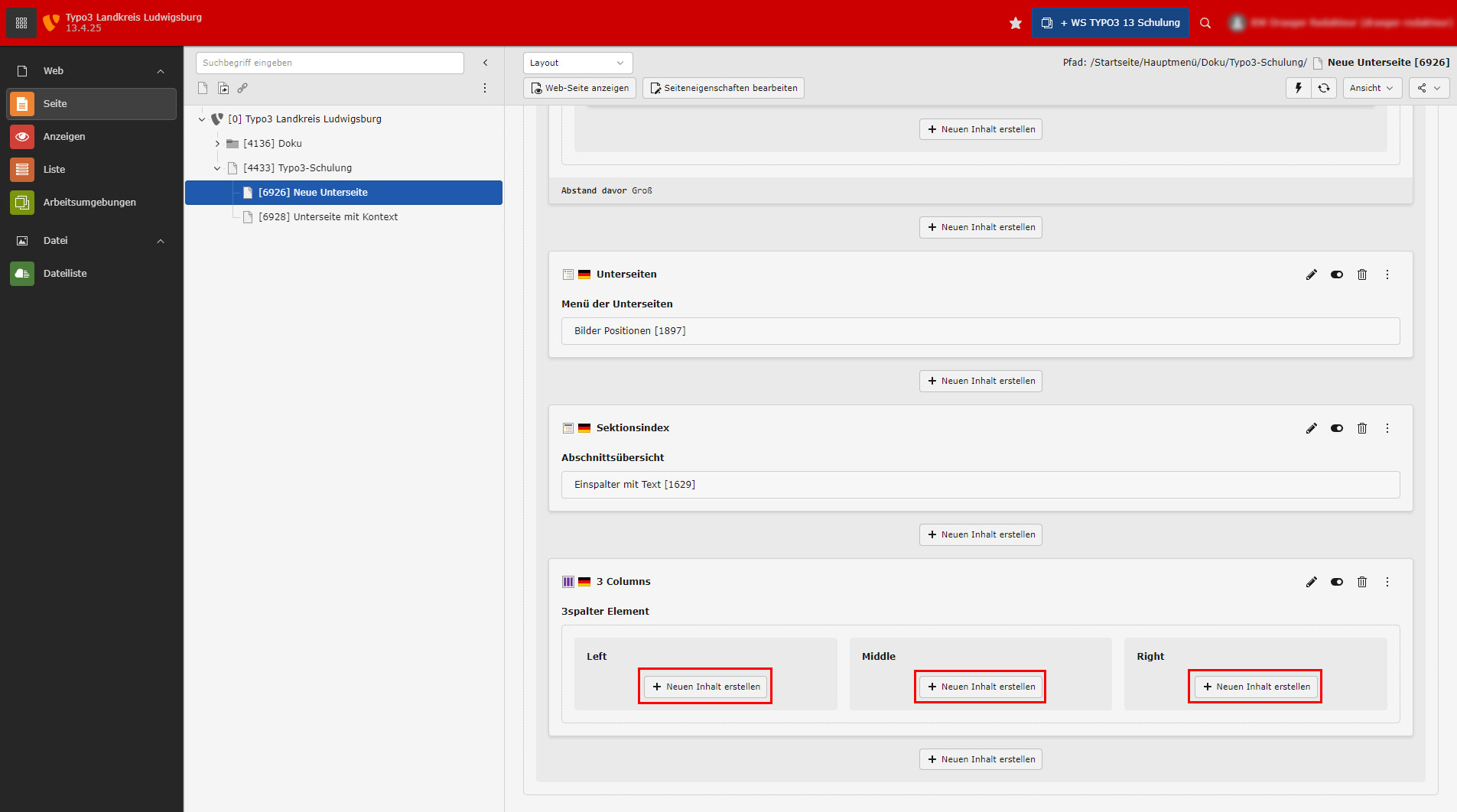
You can now select "Create new content" in the respective columns and then create the content for each column accordingly. If required, you can also drag & drop or copy existing elements into the columns.
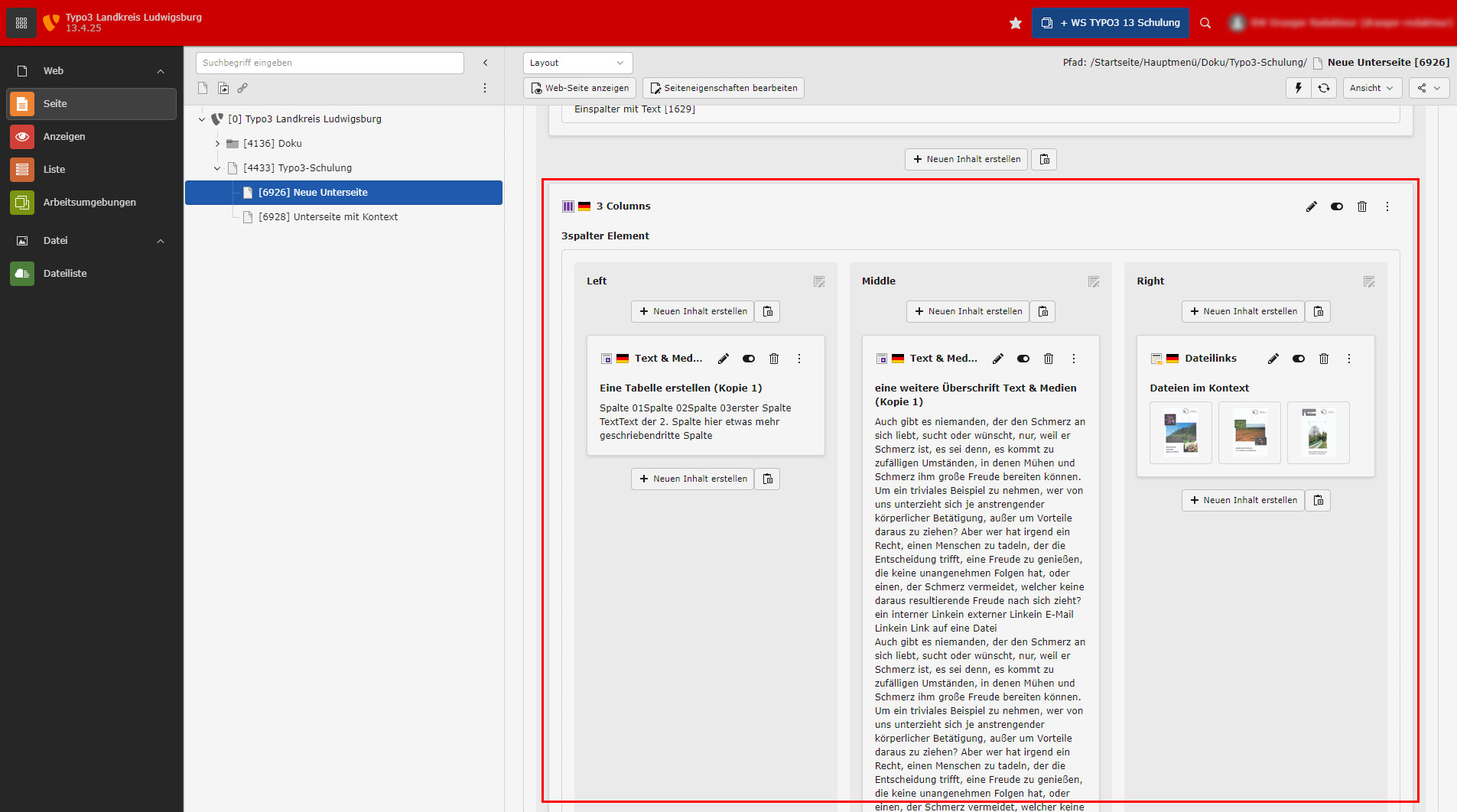
In the example, 3 elements were stored as copies in the columns (hence "Copy 1" in the heading). The headings were then adjusted according to the hierarchy (here heading 3).
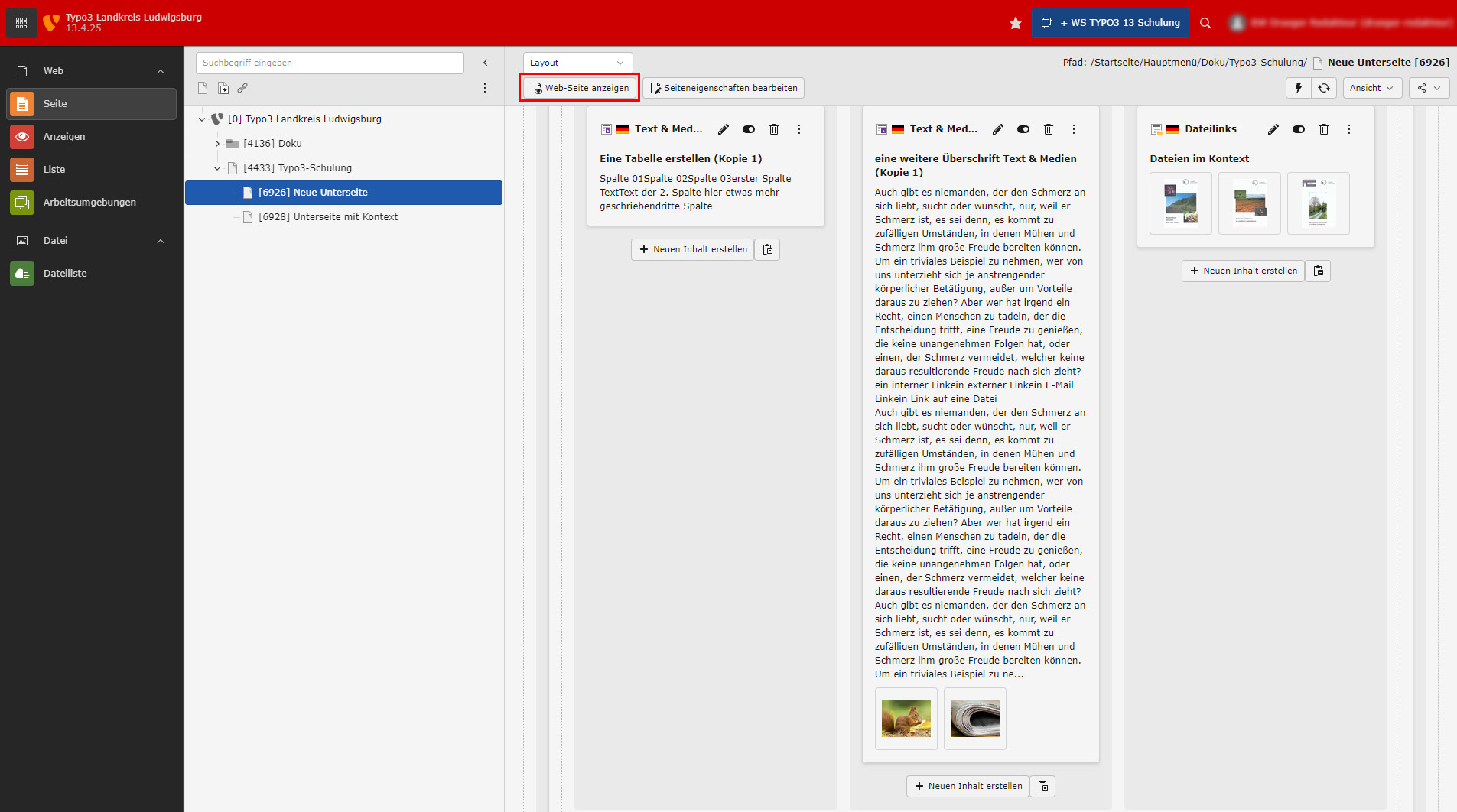
Now click on "Show web page" at the top for a preview of the changes.
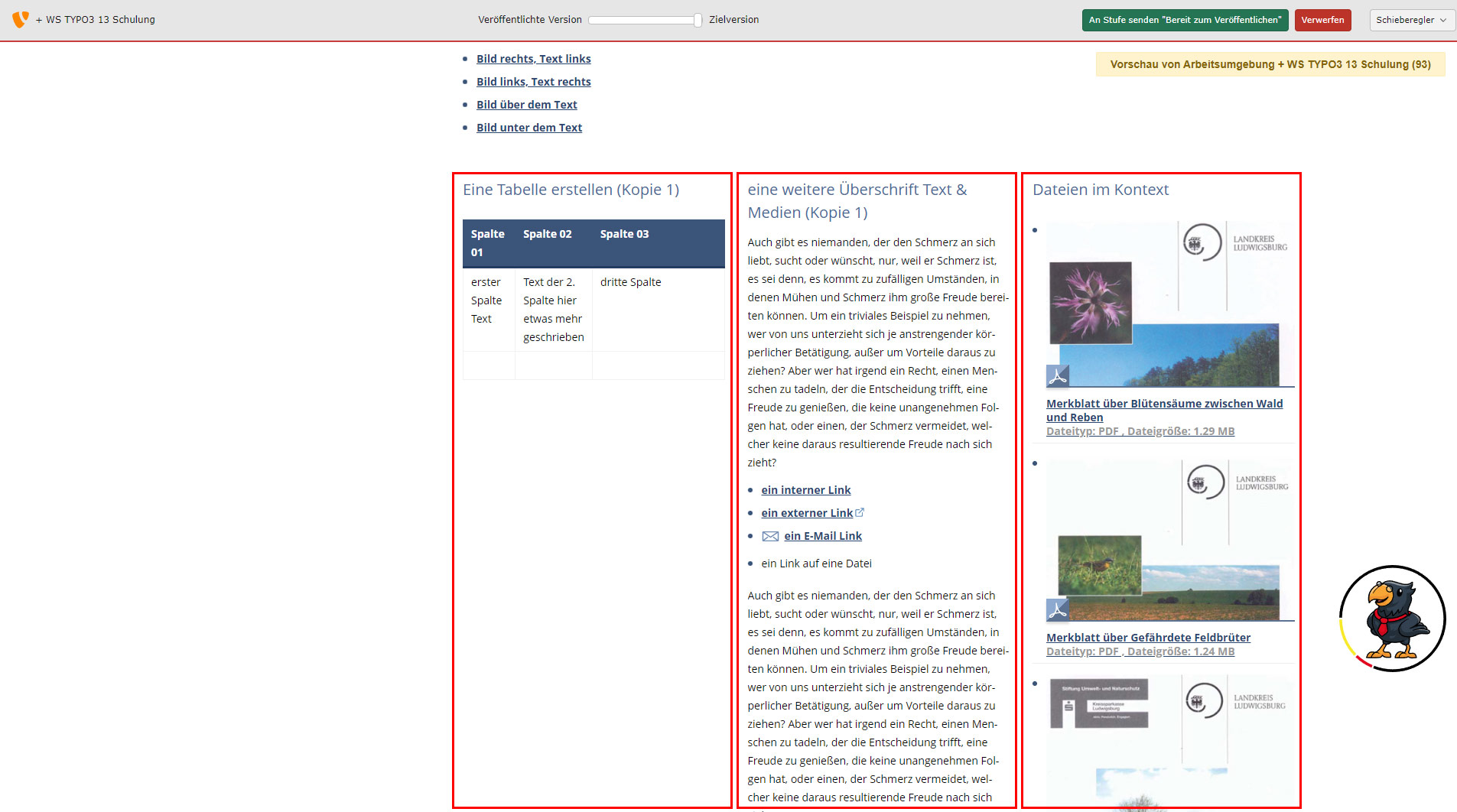
Our new 3-column element with content can now be seen in the frontend. Visually not ideal, it only serves to illustrate the procedure. You must decide how many columns you actually need according to the content.