




To create an accordion

To create an accordion, click the "Create new content" button again at the desired location in the backend.

In the pop-up that opens, select the "Accordion elements" element in the "Container" area.
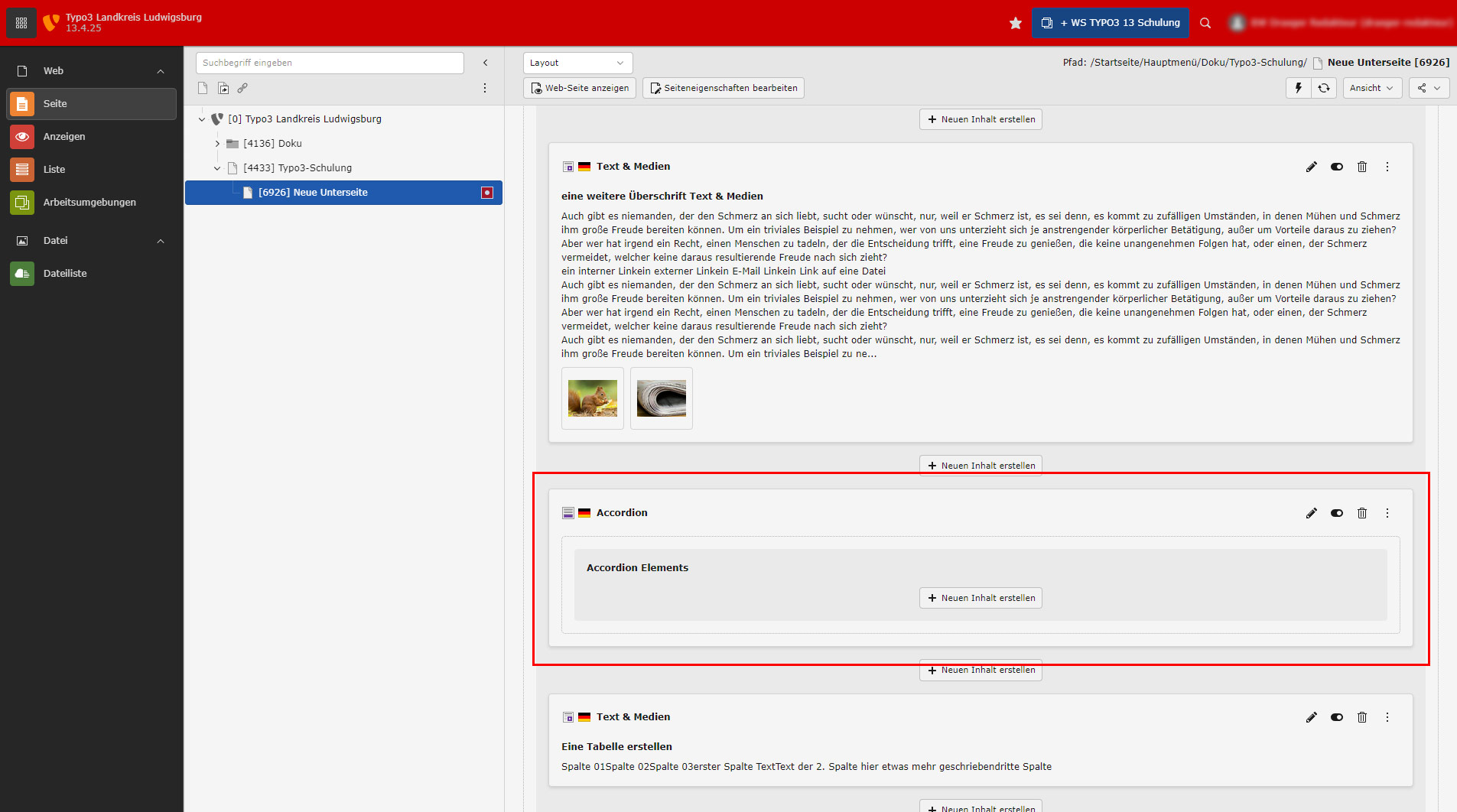
Immediately after clicking, the Accordion element becomes visible in the desired position in the backend.

Click on the button with the pencil to edit the accordion.

Assign a heading as required and "Save" and "Close" your changes.

You return to the overview of your page content and see the Accordion element with the changed heading.

In our example, we take an existing content element and move it directly into the accordion using drag & drop. Of course, you could also create a new element directly within the accordion (e.g. text & media).

The element just moved from the normal content into the accordion.
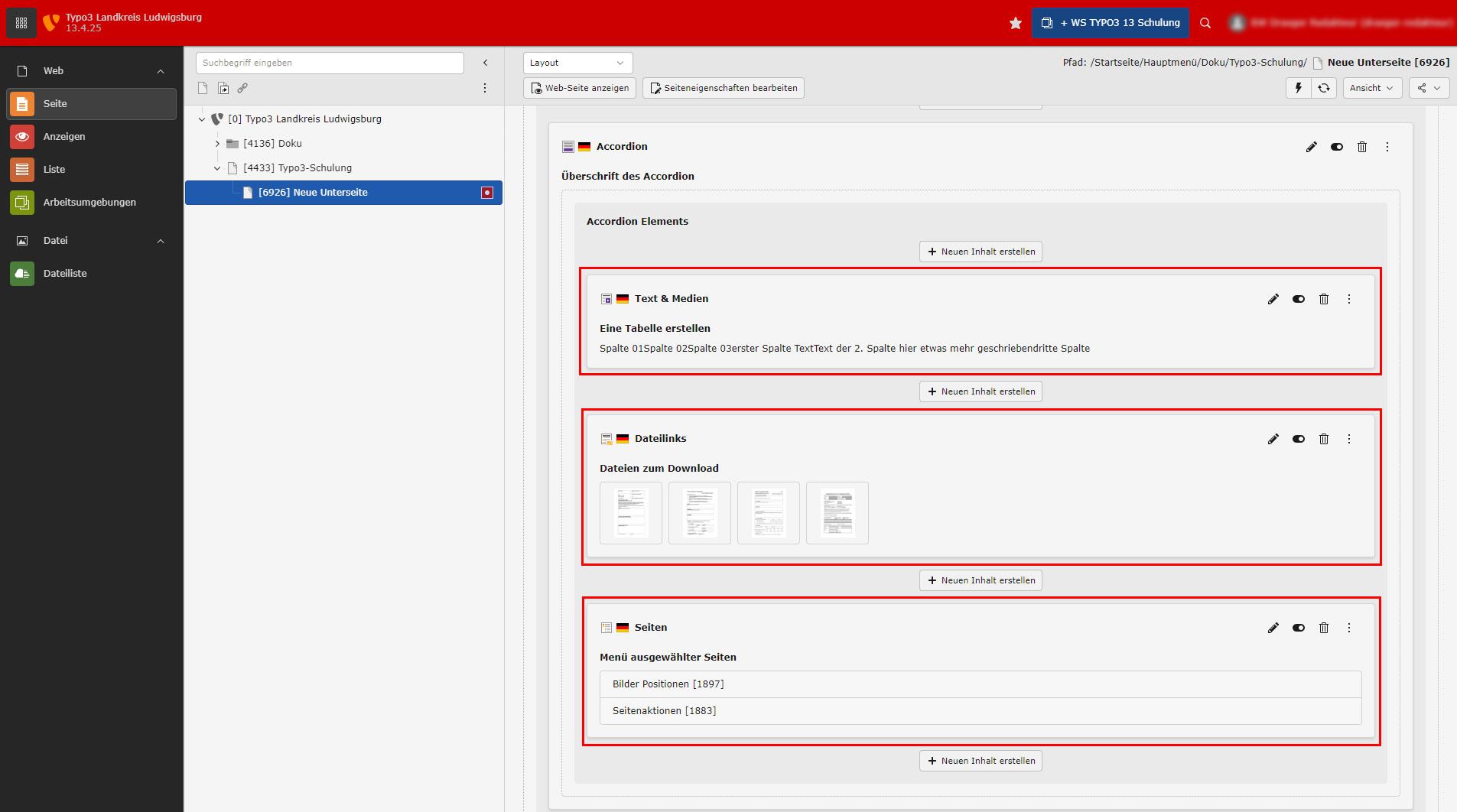
Here is the backend view after 2 more elements have been added.
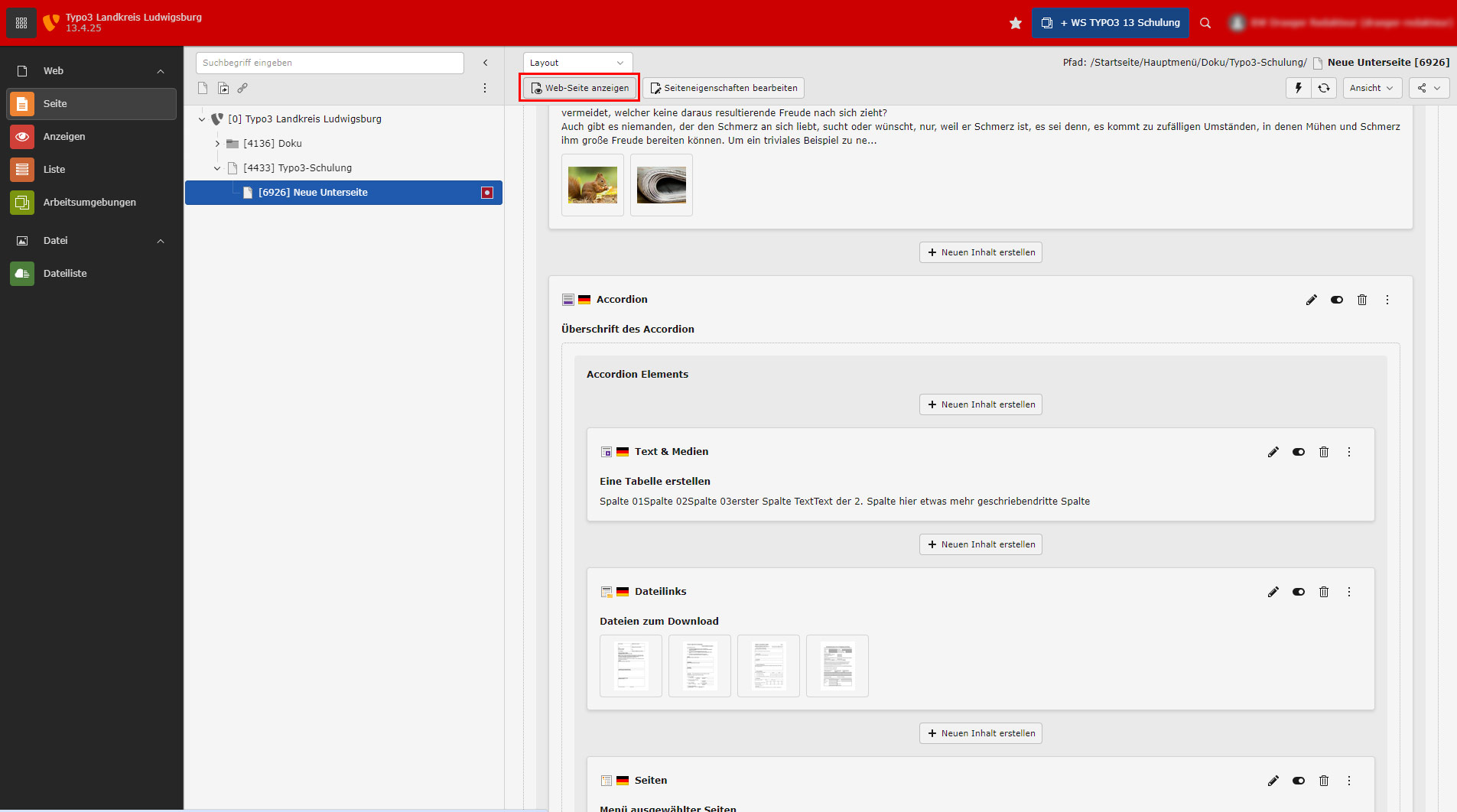
For a preview, we can press the "Show web page" button at the top of this backend view of the elements of a page.
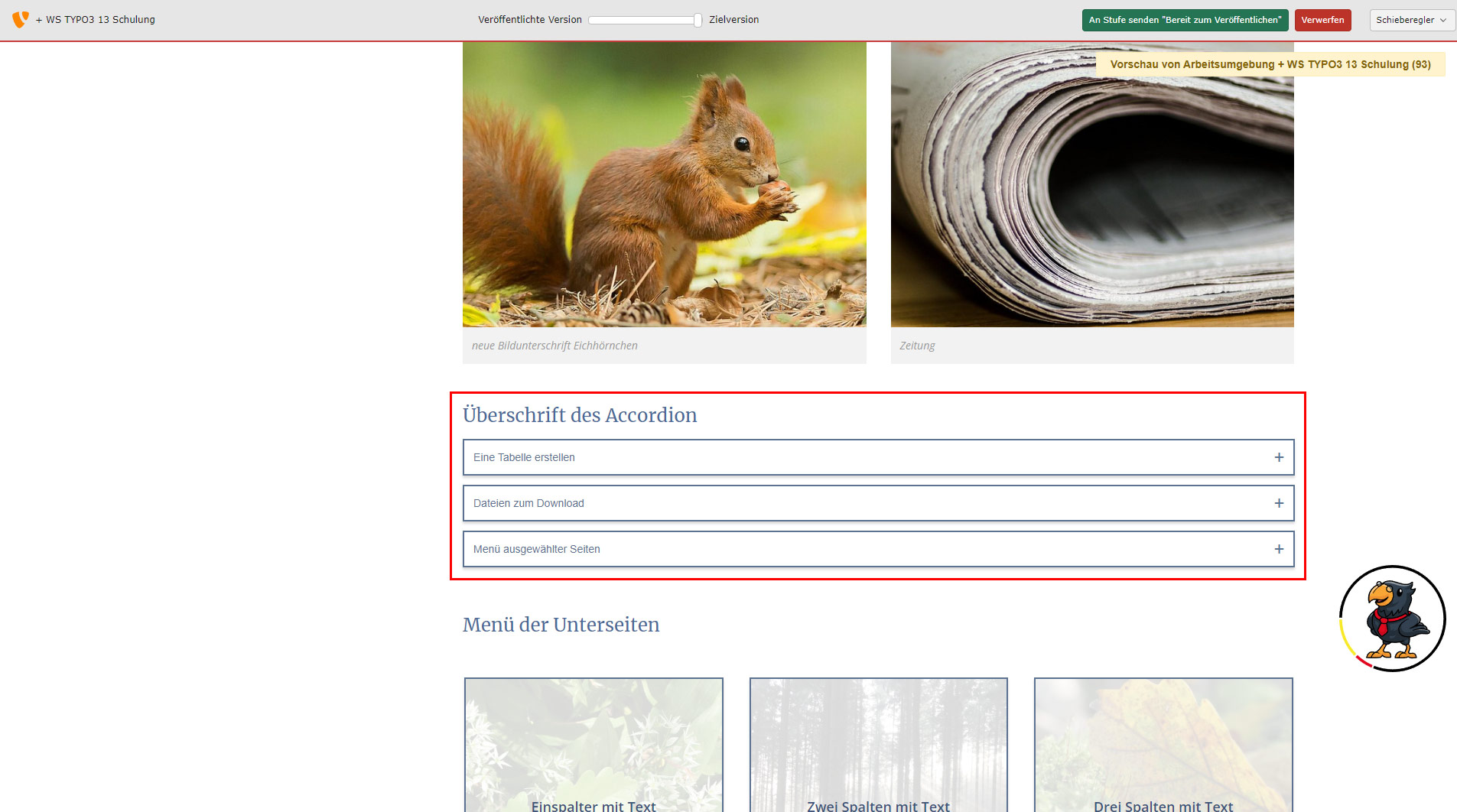
The preview in the frontend and our generated accordion. The elements are all closed and can be opened alternately.
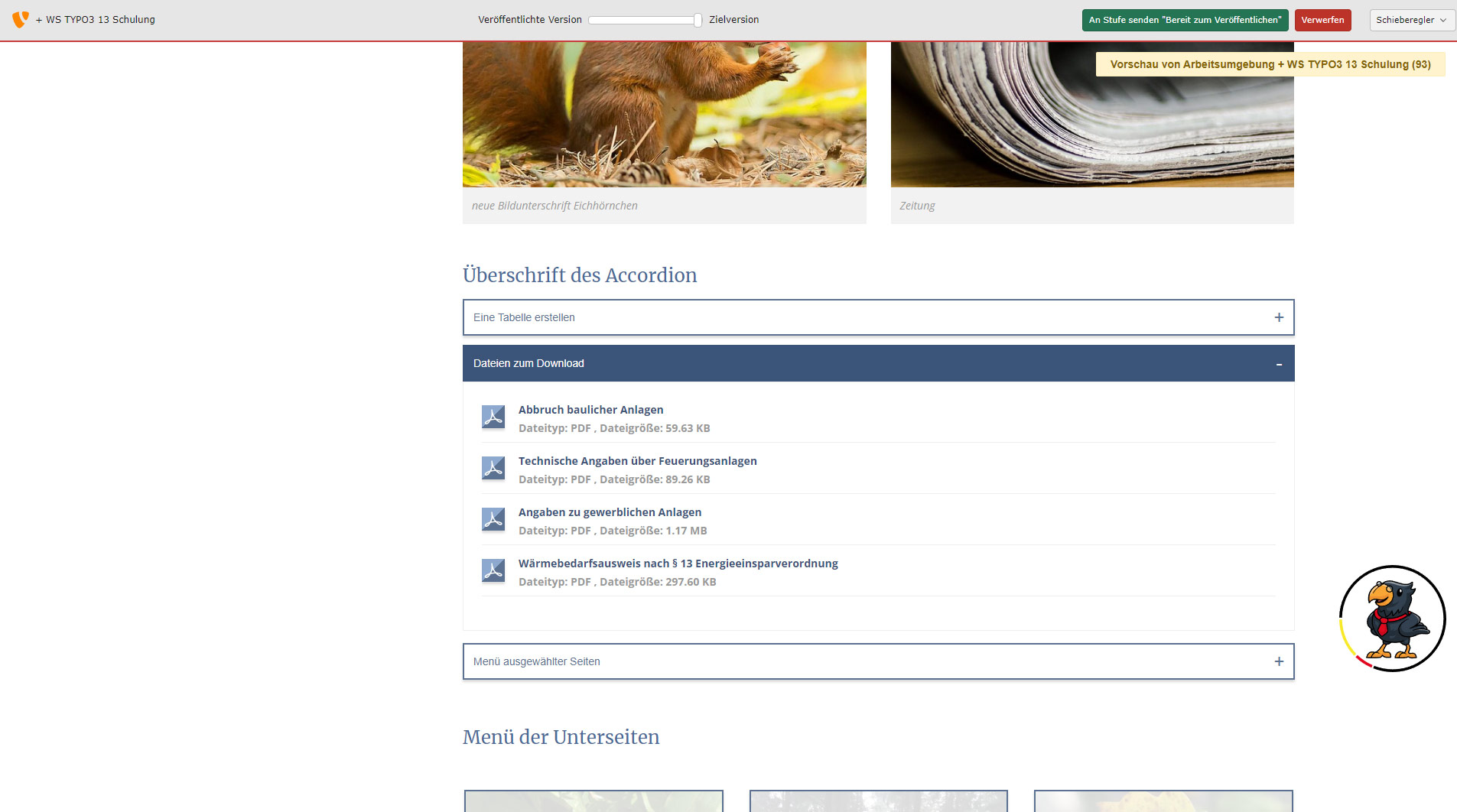
The 2nd element of the accordion is unfolded here.
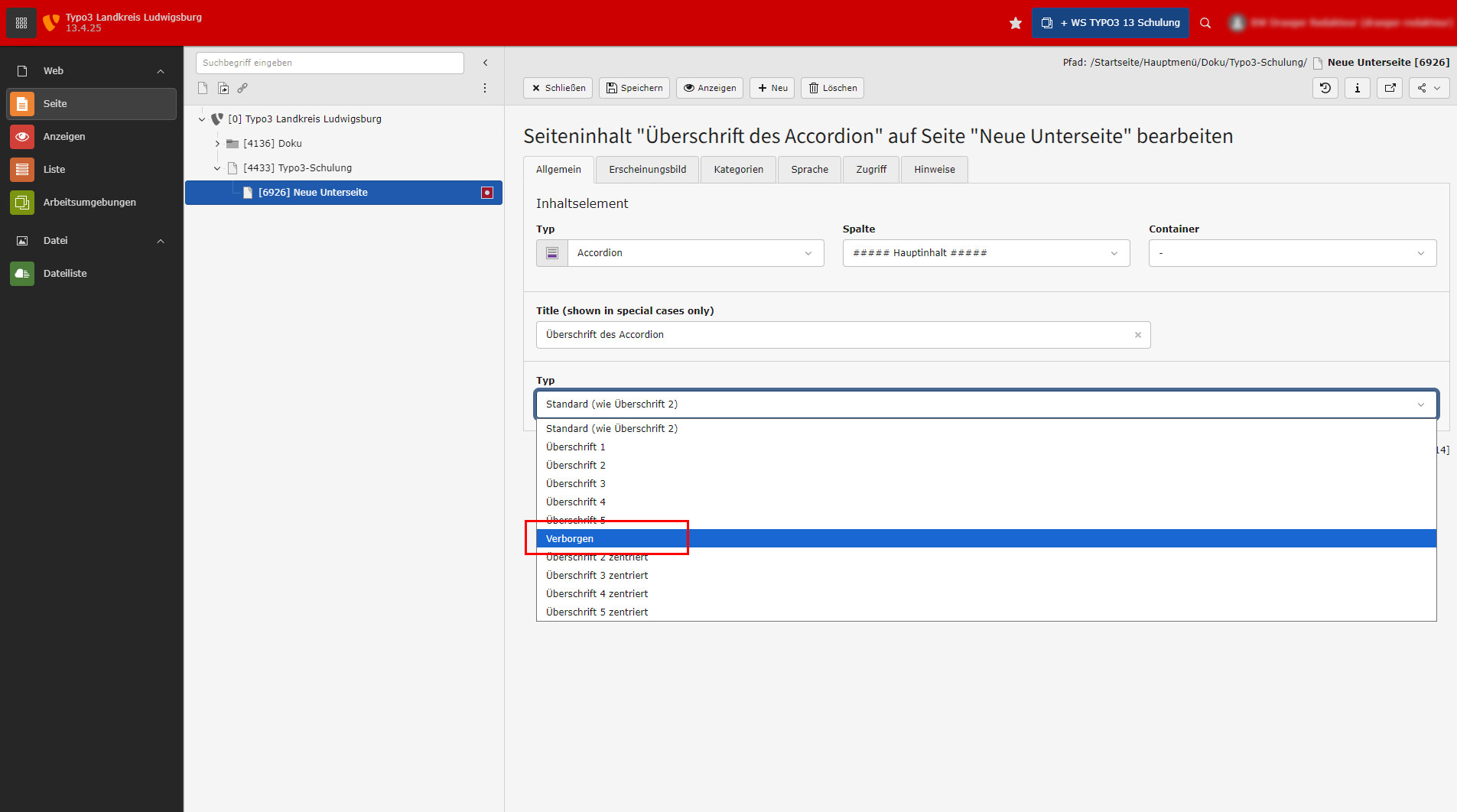
If the heading of the accordion is not required, it can be set to "Hidden" in the accordion element itself.
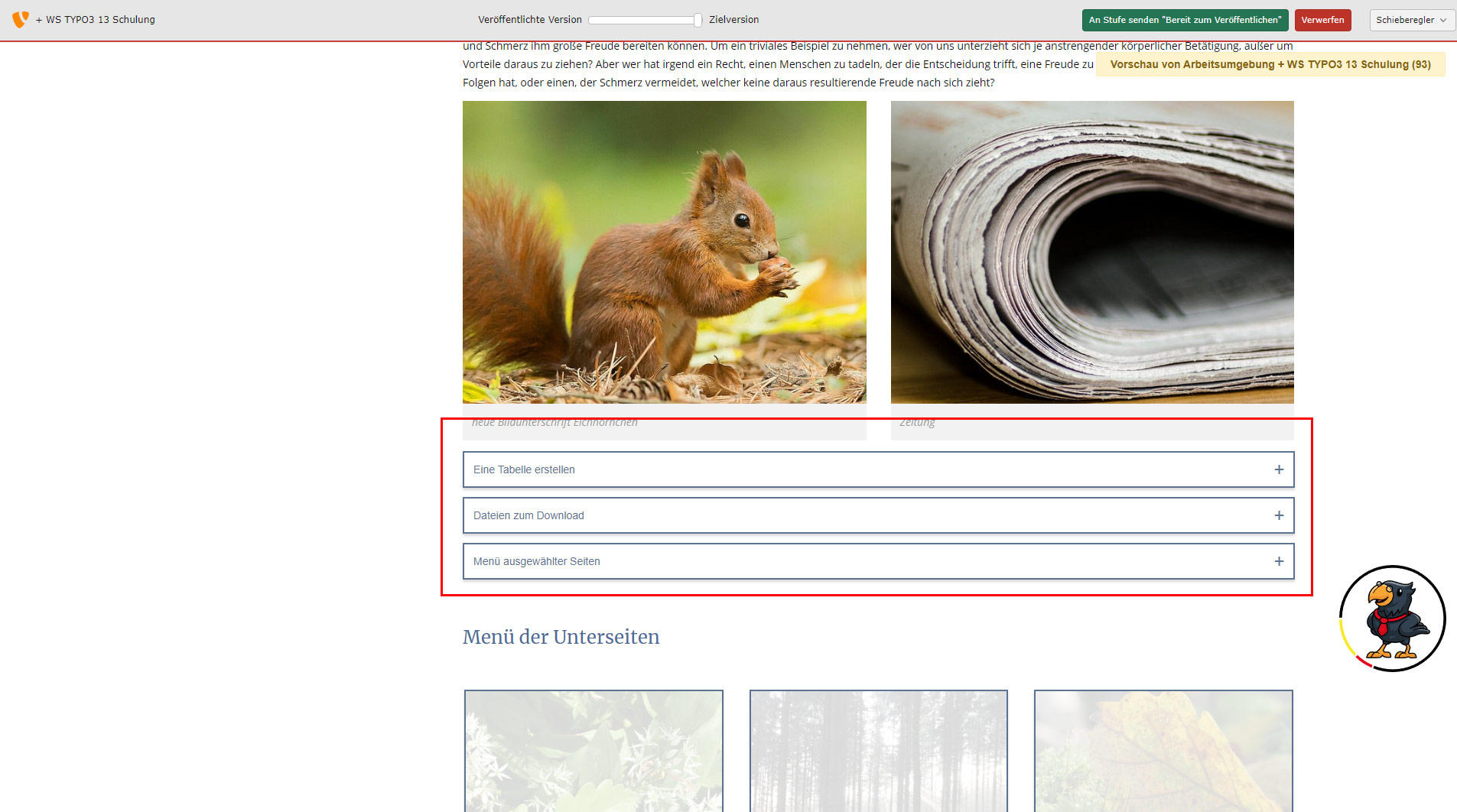
After "Save" and "Show" in the preview, the accordion is now without a heading. In this example, the accordion is very close to the previous text & media element. This can be corrected.
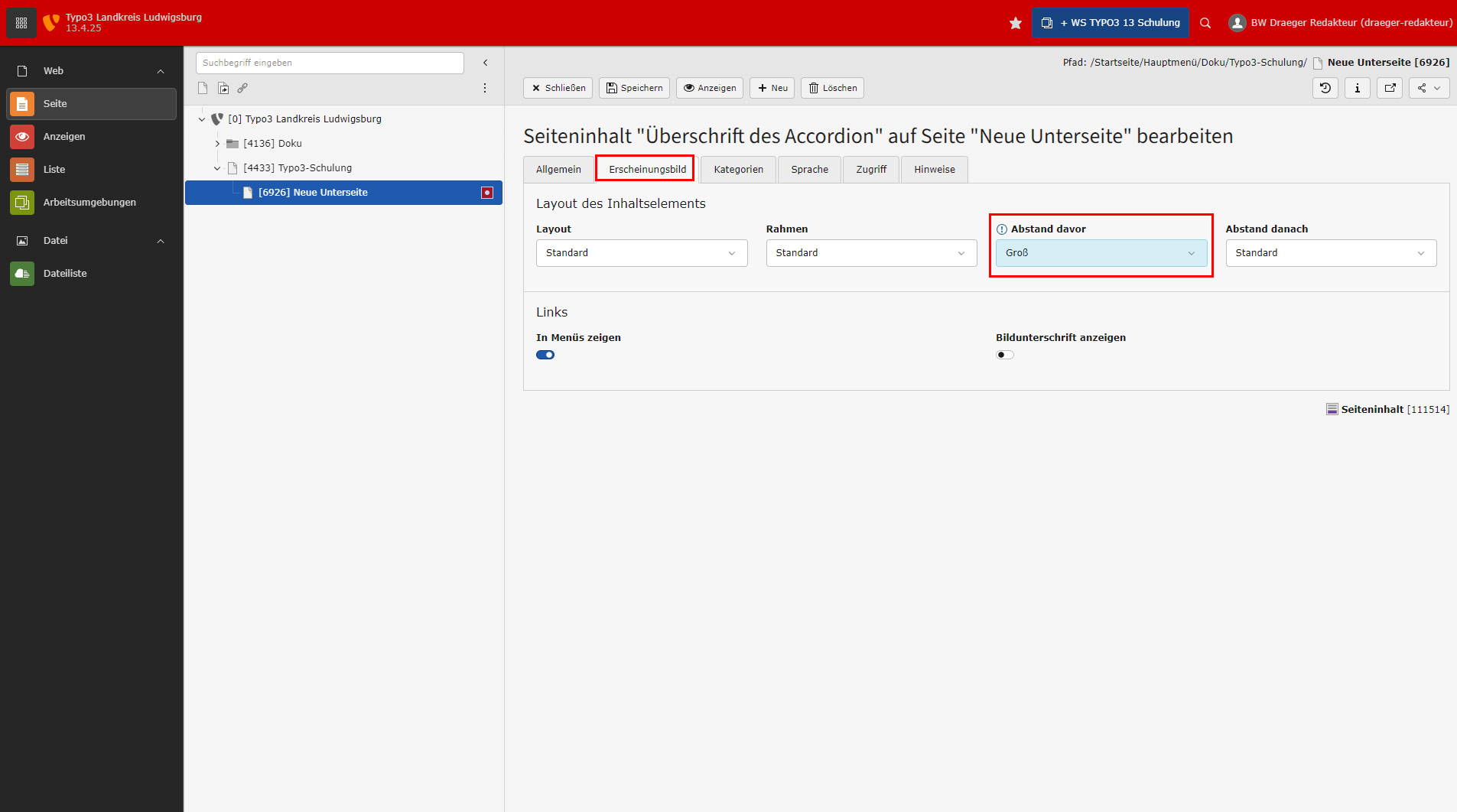
To correct the spacing, you can use the "Spacing before" option in the "Appearance" tab in the accordion. There are predefined distances, we have selected "Large" here. Then press "Save" and "Show" again.
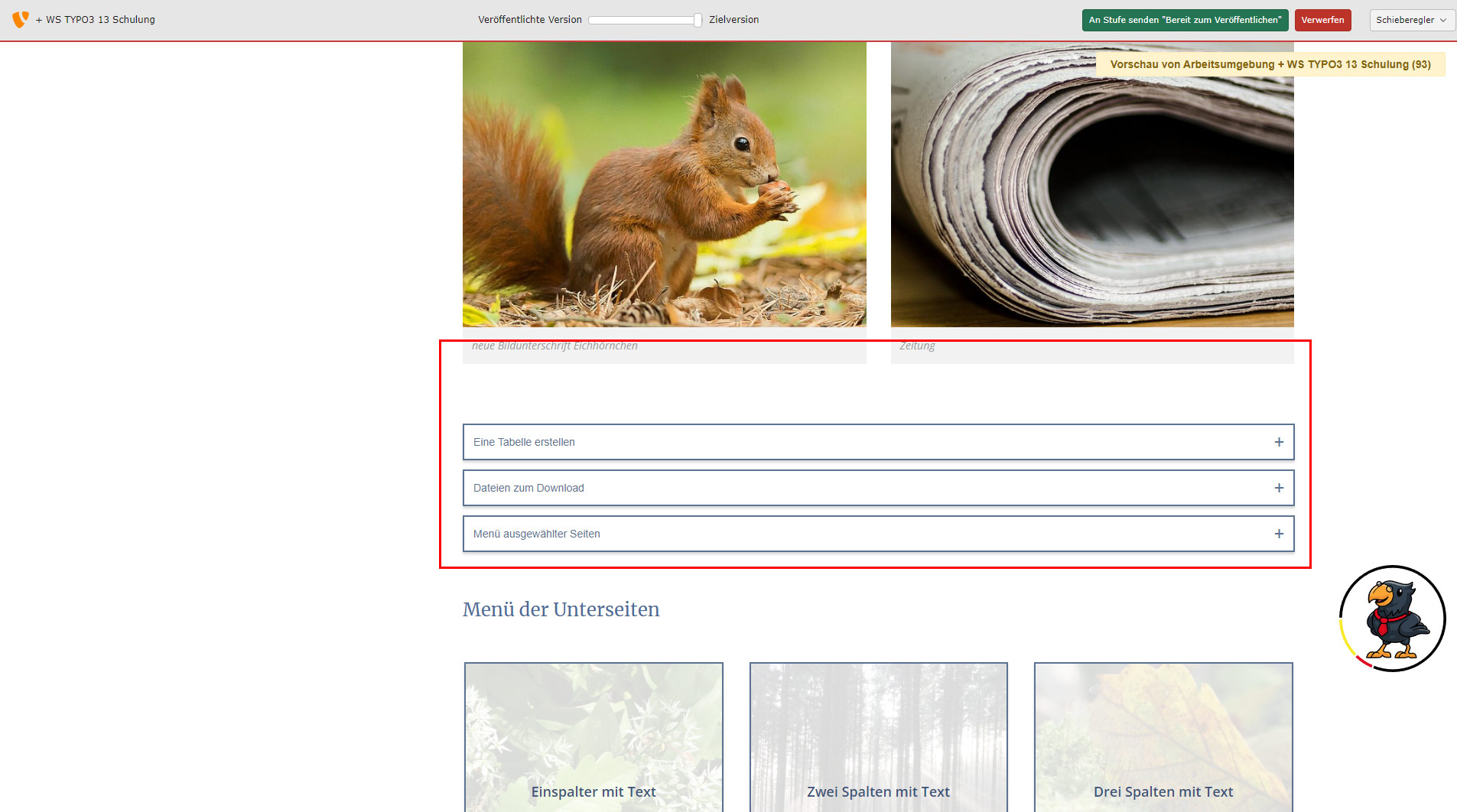
You can see the corrected spacing of the accordion in the preview.
Accordion special case
In special situations, you may want to place several content elements within an accordion and there within an accordion pop-up element. In this case, use the 1column element as an "intermediate container".
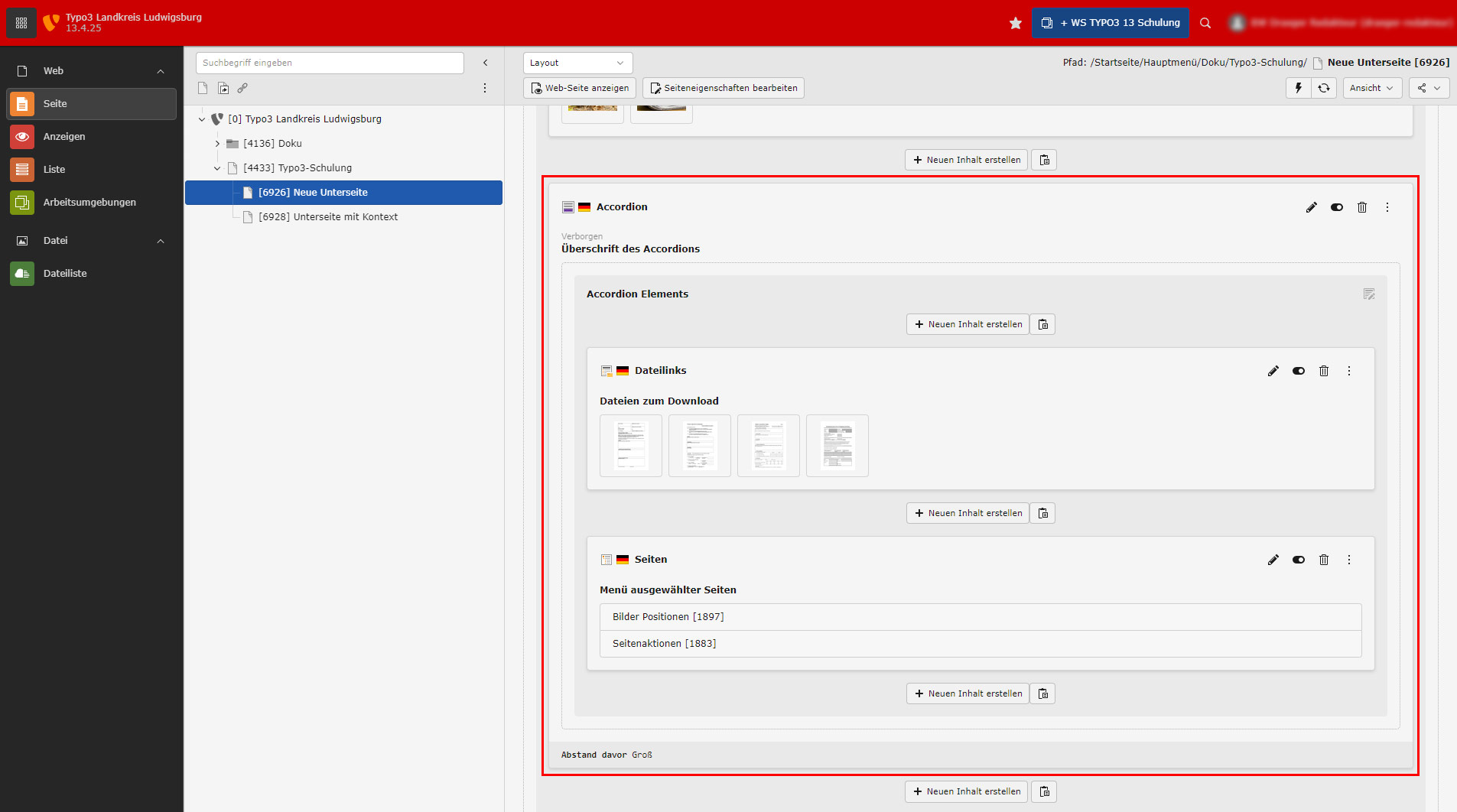
The initial situation is an accordion with 2 content elements in the backend.
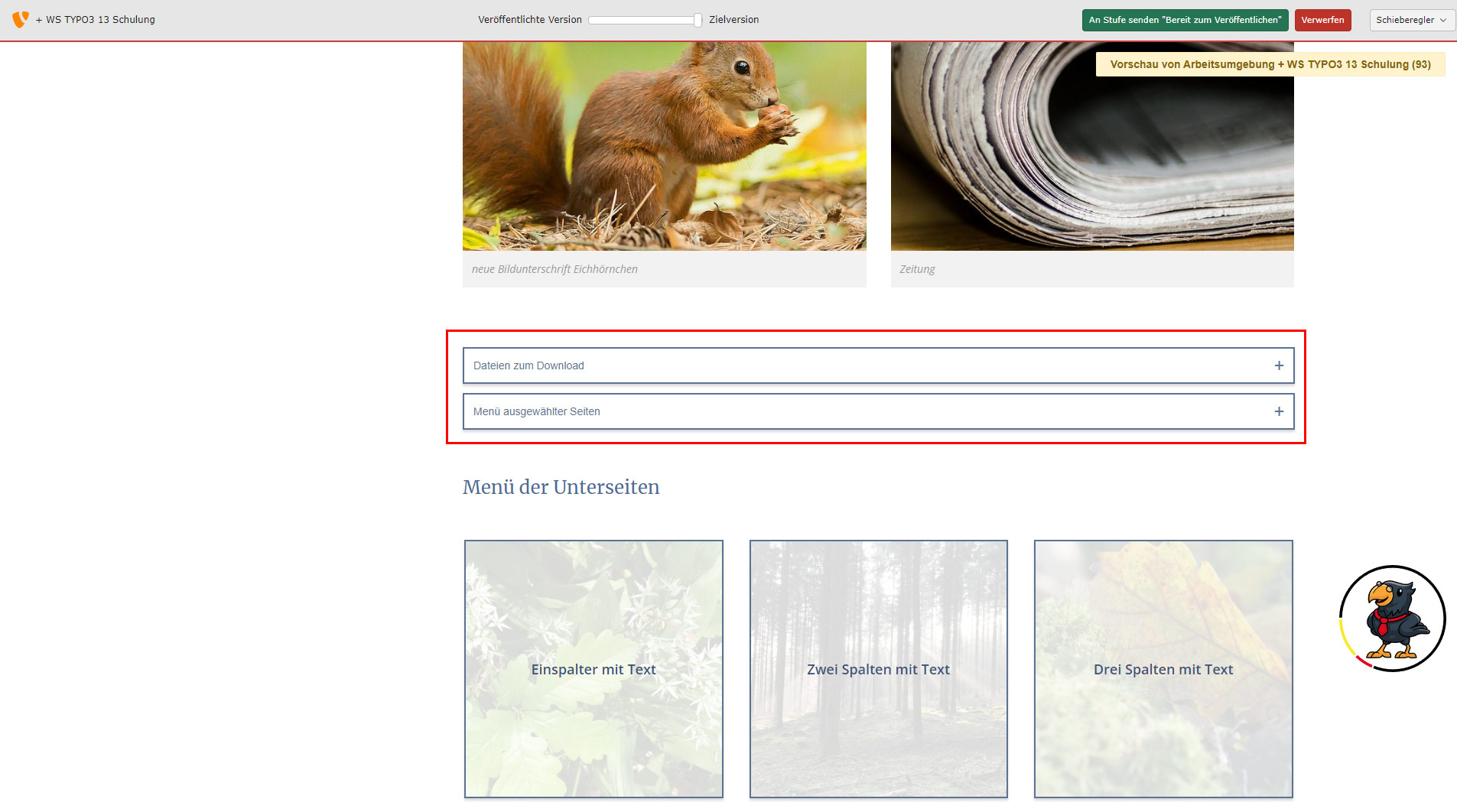
The same accordion in the preview with 2 pop-up elements.
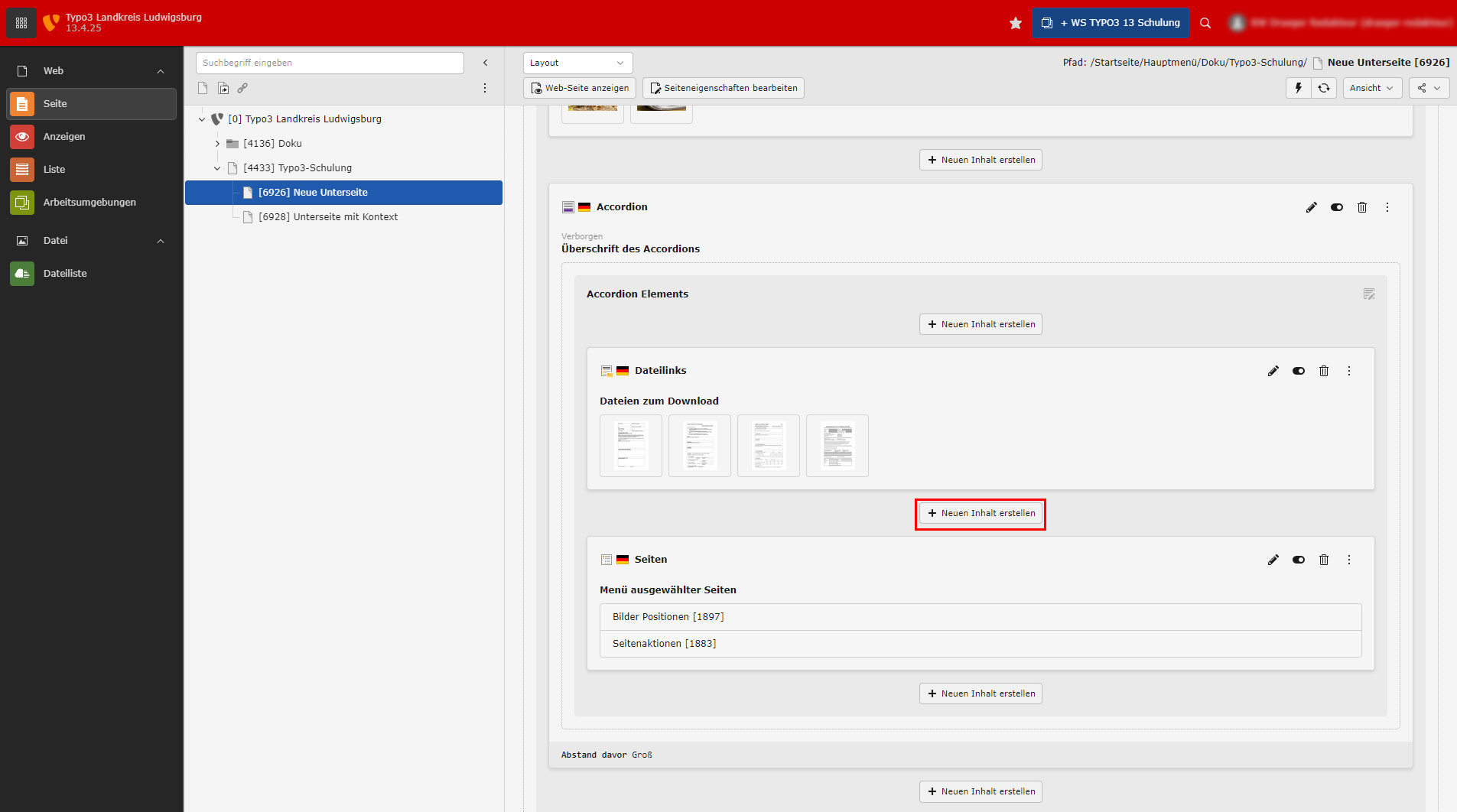
In addition, another pop-up element is to be created in the middle between the existing elements. To do this, select the "Create new content" button again.
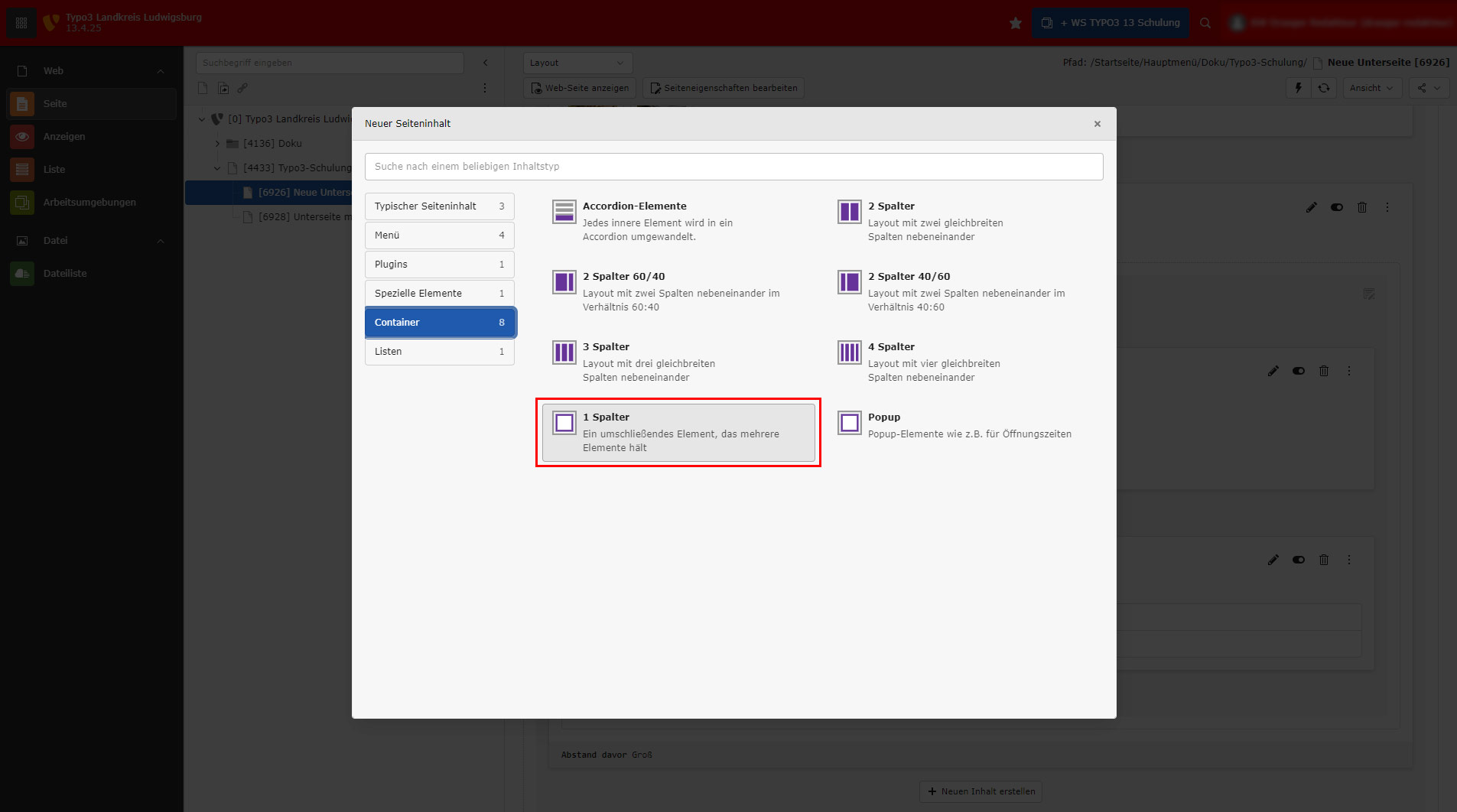
In the pop-up that opens, select the "1 splitter" element in the "Container" area.
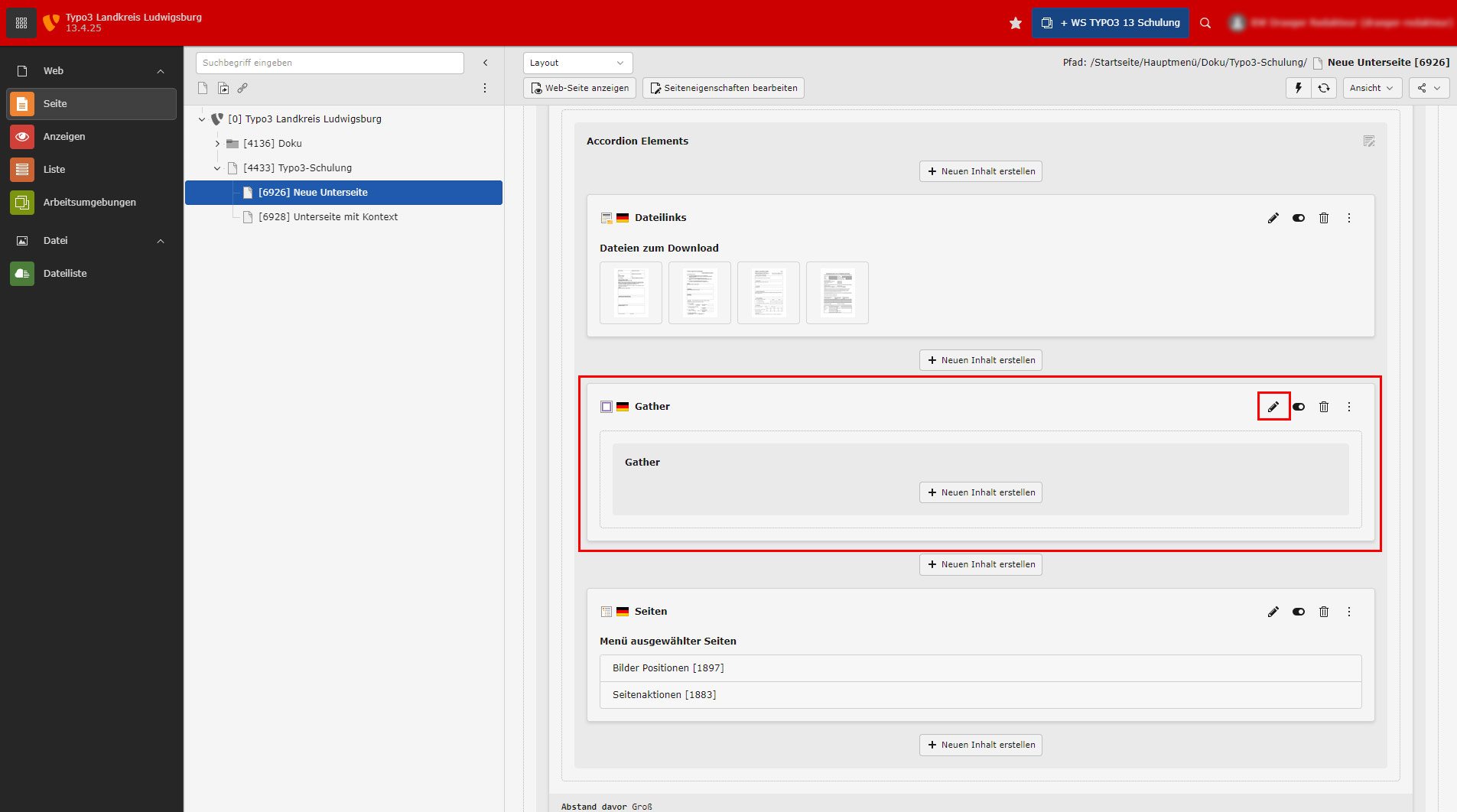
After the selection, a so-called gather is created in the backend. I use the pencil to go directly to editing the element.
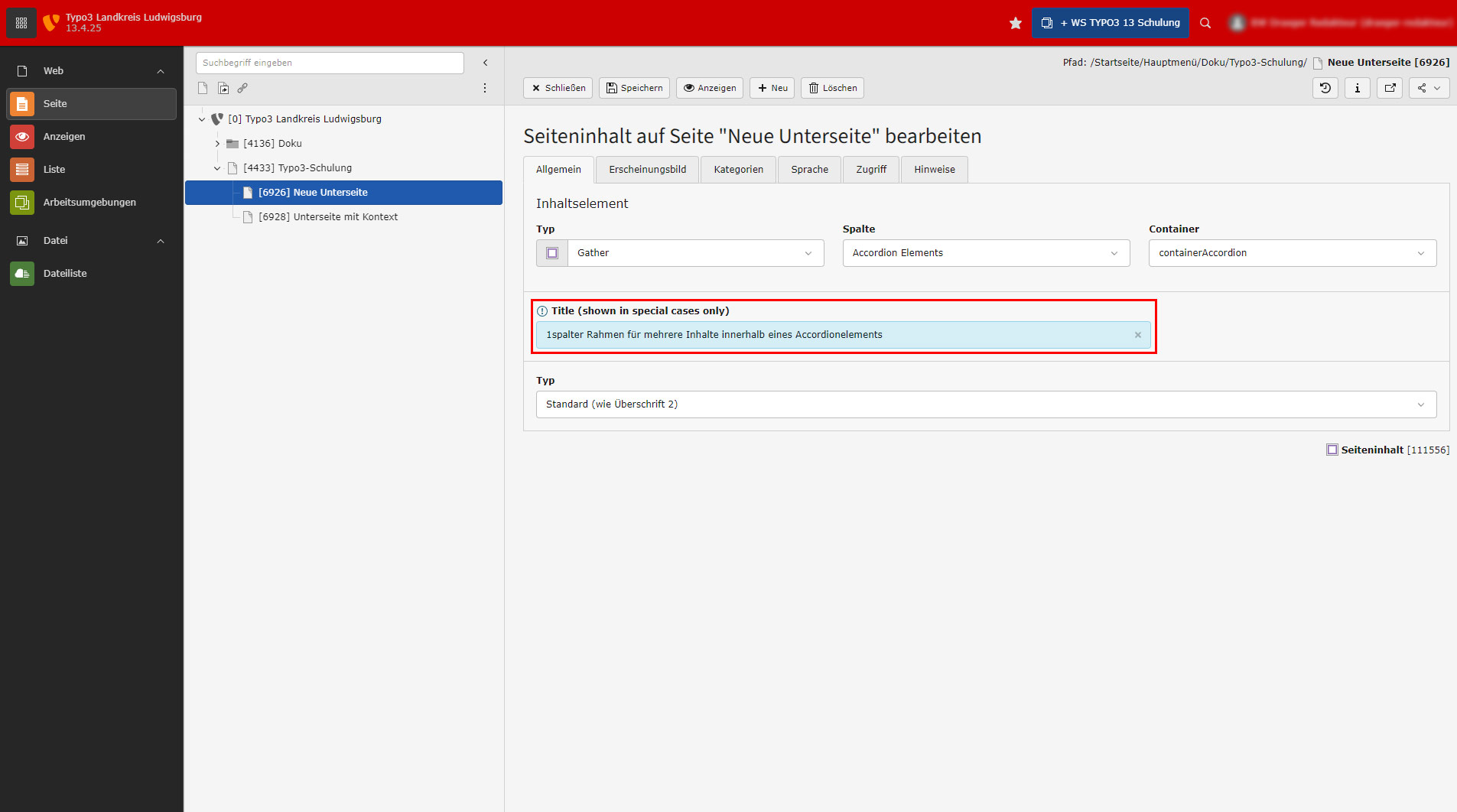
Assign a heading again. This is used in the pop-up element as the displayed text for expanding.
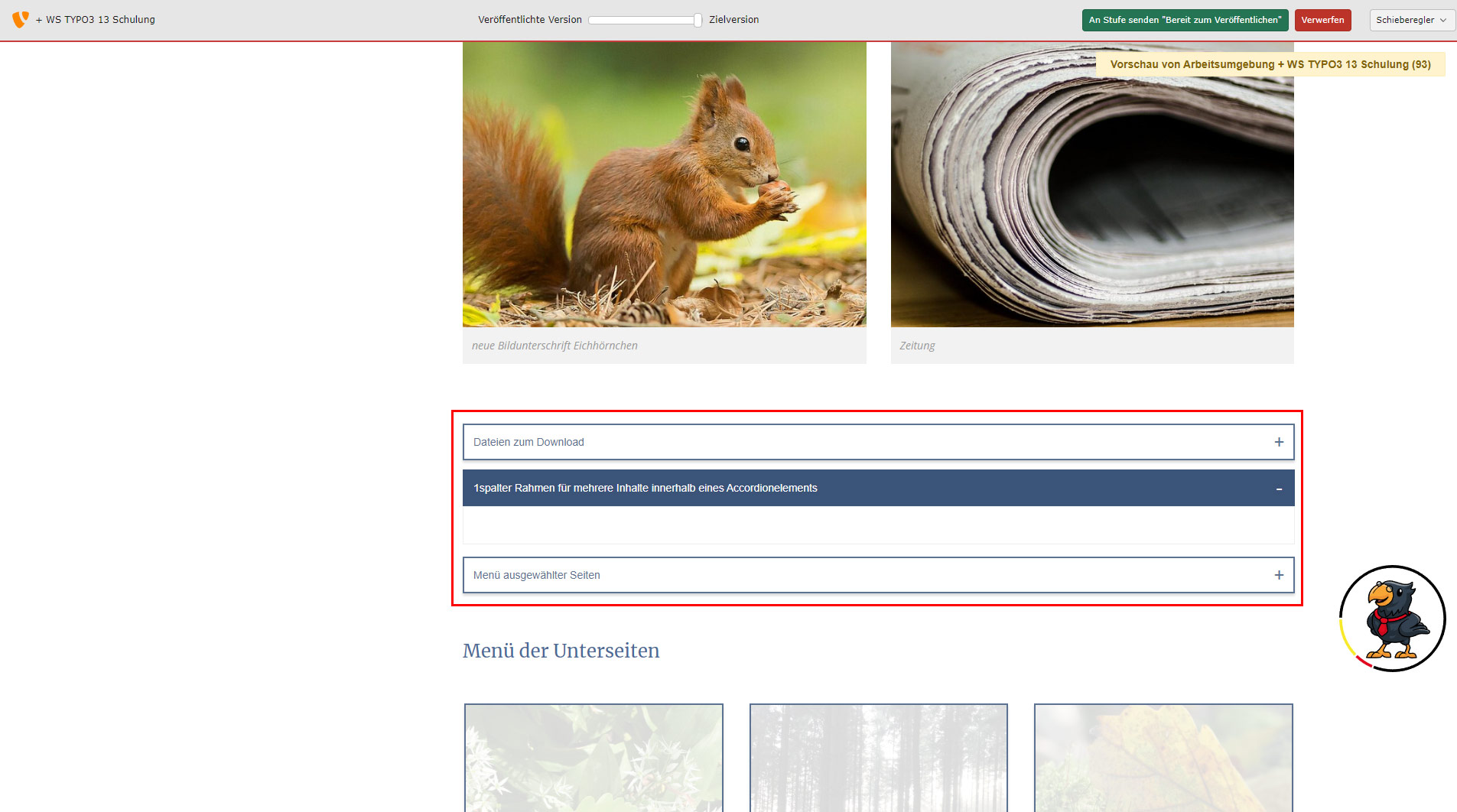
After "Save" and "Display", you will see the new pop-up element in the preview (still empty here).
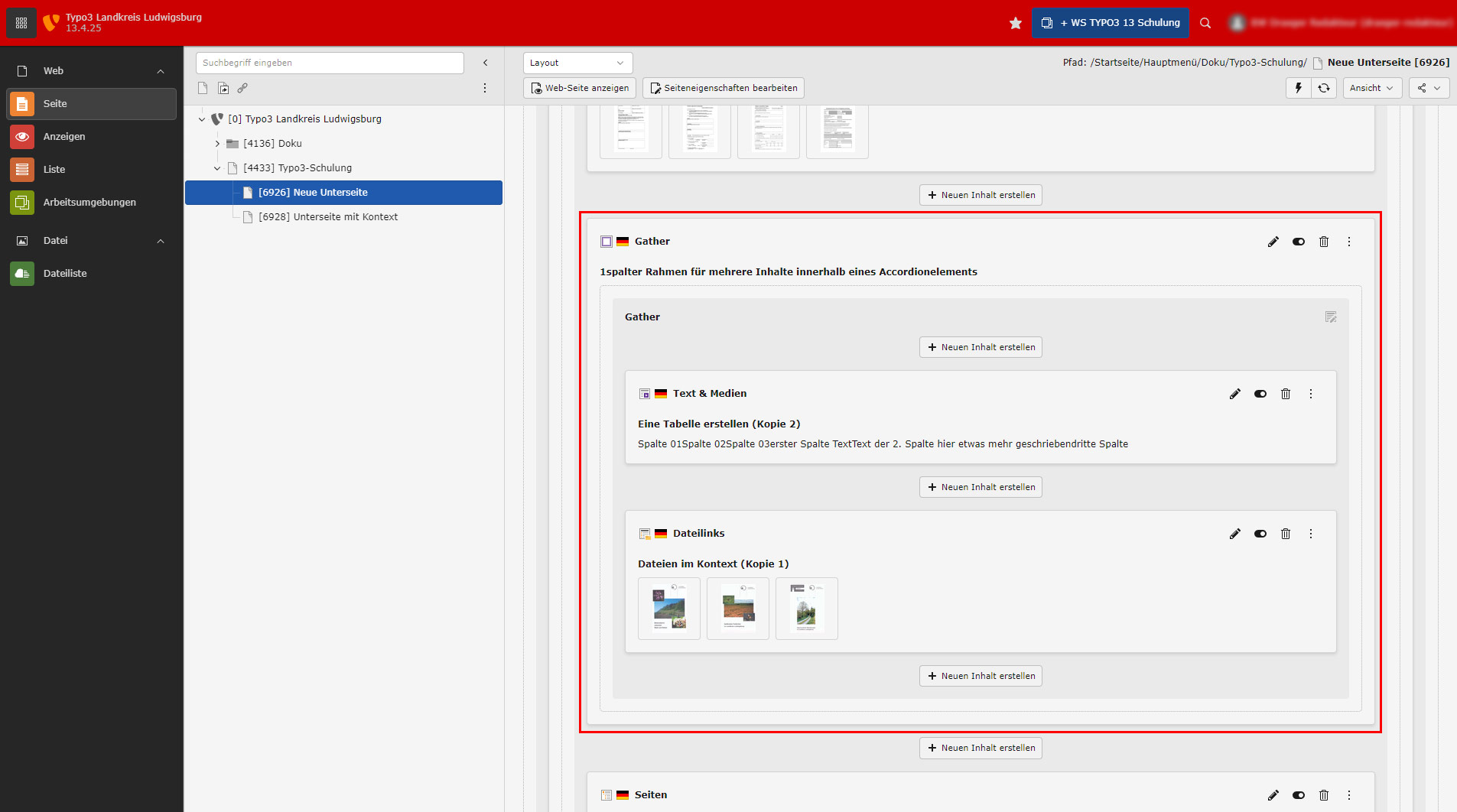
Here, 2 further content elements have been copied into this 1-column (Gather) element. These should both be displayed directly within the Accodion pop-up element.
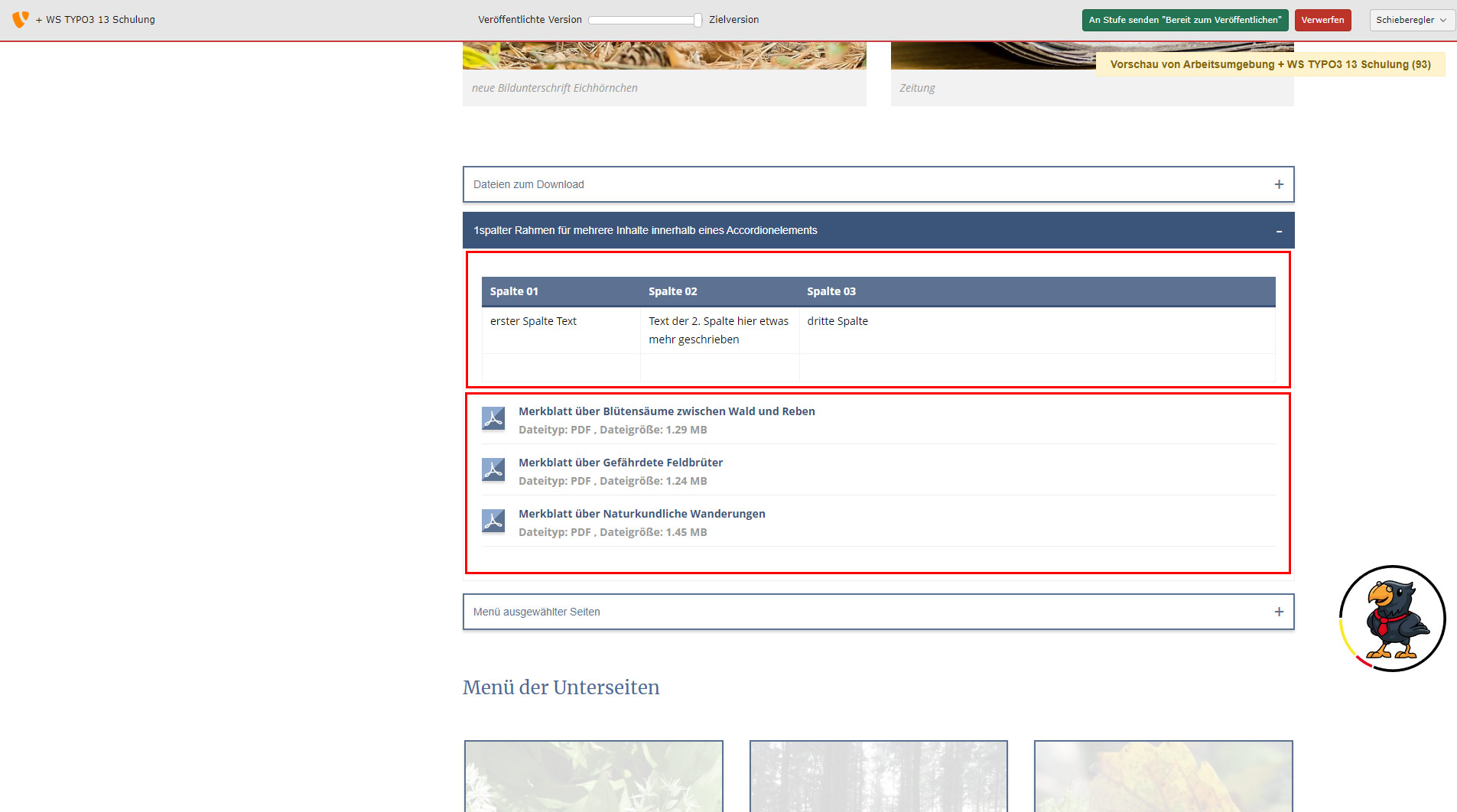
Clicking on "Show web page" takes us to the preview and we now have 2 content elements within an accordion pop-up element. The headings of the two content elements are automatically hidden.